
Your whole training block, one tableFree + Pro
A table doesn't interpret anything. That's the point: twelve weeks of runs on one screen, and you read the block yourself.
Charts summarise. A log lists. Runners have kept training logs on paper and in spreadsheets for as long as there have been runners, because a week of runs laid out in rows tells you things a trend line smooths away: the missed day, the long run that came too close to the hard one, the week that was quietly 20 km bigger than the last.
The Training Log is that table, built from the runs already in the app. Nothing to type in.
Where it is#
On the Insights tab, in the row of chips above the feed, next to Stats and Trends. Tap Training Log.
Pick the block#
Four choices across the top: 4W, 12W, 26W and Custom.
The three fixed windows are the horizons people actually train in. Four weeks is a mesocycle, twelve is a race build, twenty-six is base and build together. Choosing one does two things: it trims the table to that block, and it makes the week numbers mean something. Week 7 reads as week 7 of this block, counted from the first week in it, which is how a plan on paper numbers them too.
There is no all-time or calendar-year button on purpose. Over an open-ended history “week 147” anchors to nothing. Custom is there for any other period, a full year included: set a start and an end, and the table covers it.
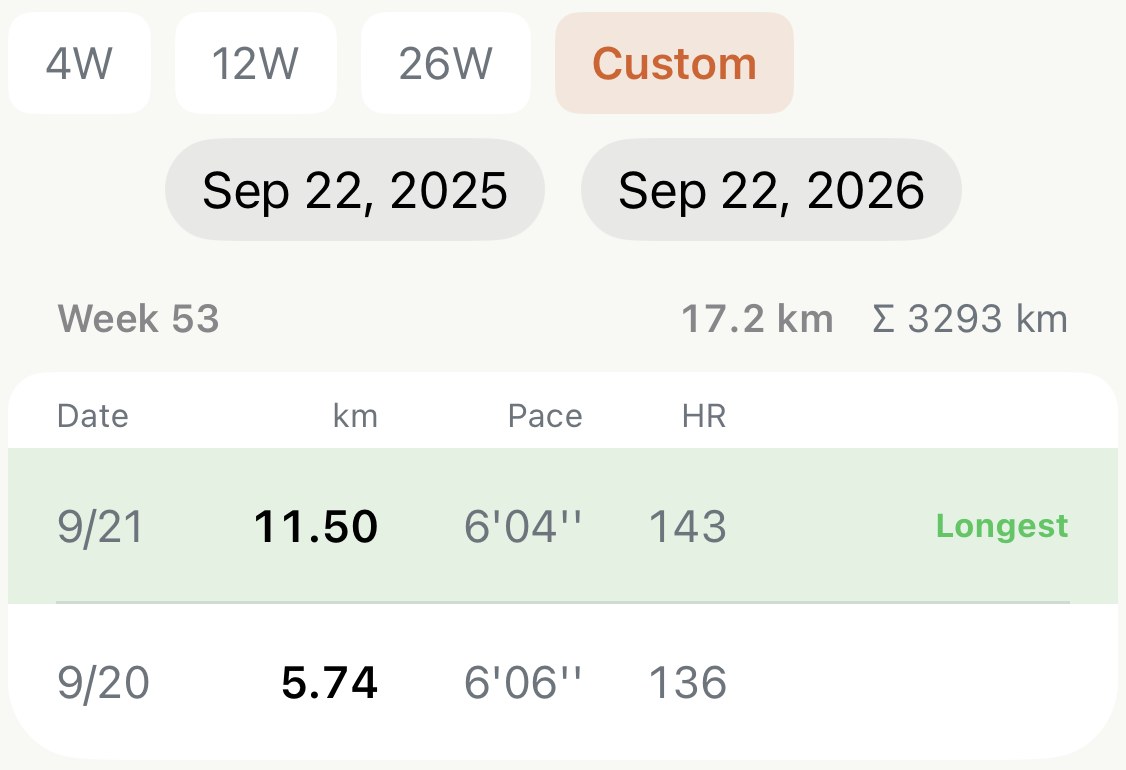
Reading a week#
Weeks run newest first, so this week is at the top. Each has a header line and a card of rows.
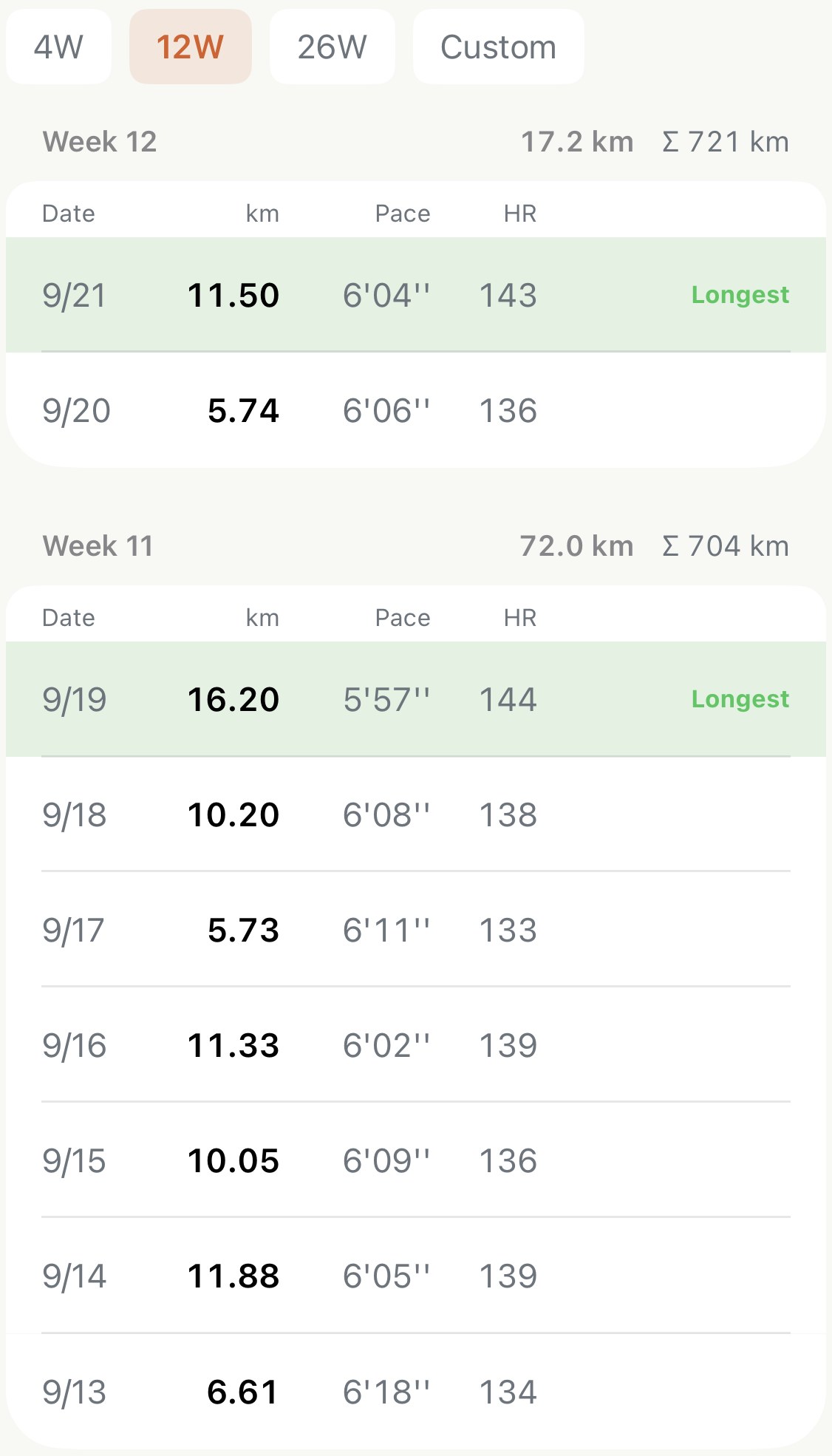
- The header carries the week’s distance and, after the Σ, the cumulative distance since the block began. Watching the Σ climb is the whole pleasure of a log.
- Each row is one run: the date, the distance, the average pace and the average heart rate. Tap a row and the run opens in full.
- The longest run of the week is tinted and marked Longest, so your eye has an anchor when reading down. A week with a single run has nothing to compare, so it carries no mark.
- A week with no runs isn’t shown, but it keeps its number. A gap in the numbering is the rest week.
A note on any run#
Swipe a row to the left and tap Note. One line, saved to the run itself, so it also appears on the run’s own screen and travels with it if you export.
“How did this run feel?” is the prompt, and that is the note worth writing. Pace and heart rate are already in the row; the thing the table can’t know is that your calf was tight, or that you ran it on four hours’ sleep.
Take it out as a spreadsheet#
The share icon at the top right hands you a CSV of the block on screen: one row per run, oldest first, with date, distance, duration, pace, heart rate, cadence, power, stride length, calories, the cumulative distance and your note. It opens in Numbers, Excel or Google Sheets, and it’s what you’d send a coach who asked to see your last twelve weeks.
Worth knowing#
- Week boundaries follow your Week Starts On setting. A Monday start and a Sunday start put a Sunday long run in different weeks, and the log respects whichever you chose in General settings.
- Distances follow your unit setting. Miles in Settings means miles down the column and in the CSV.
- A run you’ve changed shows the change. Rename it, delete it or merge it and the log rebuilds; a note you write here is the same note you’d write on the run.
Why it was built this way: The spreadsheet a stranger posted
Get the app
Every run you've done, in the table you'd have kept by hand.
The log is free and already filled in from your history. Open it at 12 weeks and read your block the way a coach would: totals down the side, the long run marked, the cumulative climbing.
↓ Download Apex Run