
Sync All Data, and the four times you'd want it
New runs arrive on their own. This is the button for the rare day one doesn't, and for the day you deleted the wrong one.
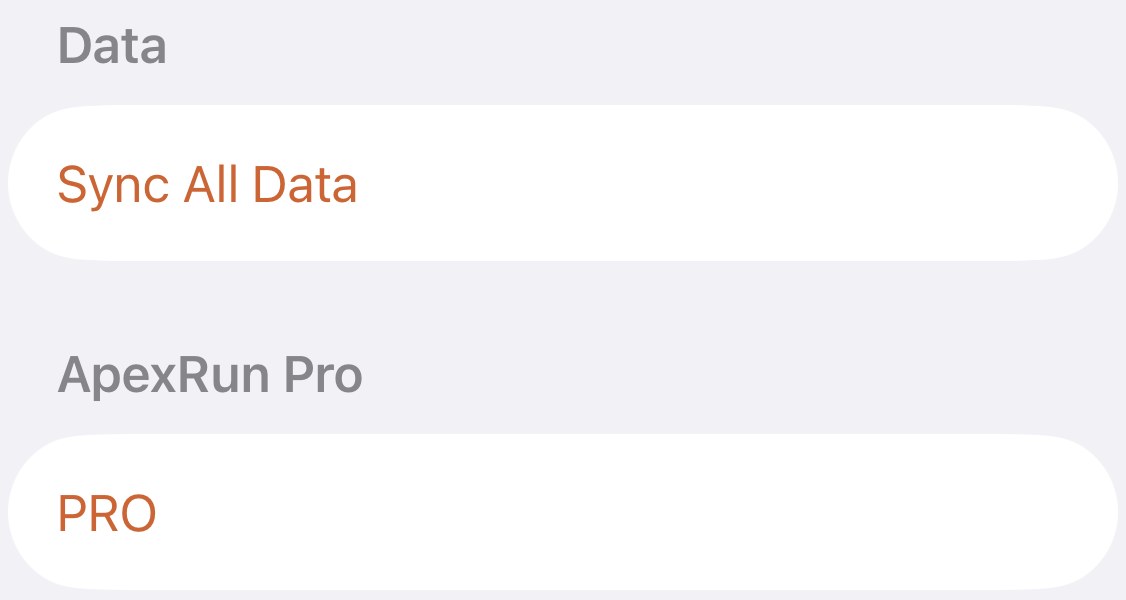
It sits alone under Data, and most people tap it once during setup and never again. That’s how it should be. Runs from your watch appear in the app on their own, so this button is the fallback, not the routine.
What it does#
It asks Apple Health for every running workout, compares that list with what the app already holds, and imports only the ones that are missing. Runs you already have are left exactly as they are.
While it runs, the button reads Stop Sync and the line beneath counts progress (pictured on the import page). The count is runs missing from the app, not runs you’ve ever done, so on an installed app with one lost run it reads 1 of 1 and is over in seconds. Each run takes a few seconds to read from Health, and you can keep using the app while it works. When it finishes, the line reads All data is up to date.
The four times you’d want it#
- A run never showed up. You finished, the watch saved it, and the app never got it. Tap this and it arrives with everything it has. If it’s there but its map is empty, that’s a different problem and a different button: Reimport.
- You deleted the wrong run. Deleting in Apex Run never touches Apple Health, so the run is still there waiting. Sync All Data brings it back. It brings back every run you’ve ever deleted, though, not just the one, so read Delete a run before you tap if you’ve been pruning on purpose.
- You want a merge undone. A merged run lives only in this app. Delete it, tap Sync All Data, and its two halves return as the separate workouts they always were in Health.
- A workout was deleted and re-added in Health. A run that came back into Apple Health from a watch or another app is a new workout as far as the app is concerned. Reimport can’t find it; Sync All Data can.
What it won’t do#
- Repair a run you already have. It skips anything already in the app, whatever state it’s in. A wrong distance or a missing map on an existing run is Reimport’s job.
- Delete anything. It only adds. Runs you removed in Apple Health stay in the app; see Delete a run for why that’s one-sided.
- Change Apple Health. The app only ever reads from Health. Nothing goes back.
Worth knowing#
- It’s the same import that ran during onboarding. On a fresh install this button and the first import are one and the same, counting your whole running life down to zero.
- Leave the app mid-way and it carries on next time you open it. A sync interrupted by a phone call or a locked screen isn’t lost; it resumes where it stopped.
- The phone has to be unlocked. Apple Health can’t be read while the phone is locked, so a sync waits for you rather than running in the background.
Get the app
Your runs are safe in Apple Health. This is how they come back.
Delete too much, lose a run to a slow sync, undo a merge: one tap re-reads Apple Health and fills in whatever the app is missing. Nothing you already have is touched.
↓ Download Apex Run