
Segments and intervals: the efforts you actually ran
A kilometre split ends where the kilometre ends. These two tables end where the work changed, which is the thing you wanted to see.
A 400 m rep is over before a kilometre split notices it. Splits are the right tool for a steady run, and the wrong one for a session with structure. These two tables are for the structure.
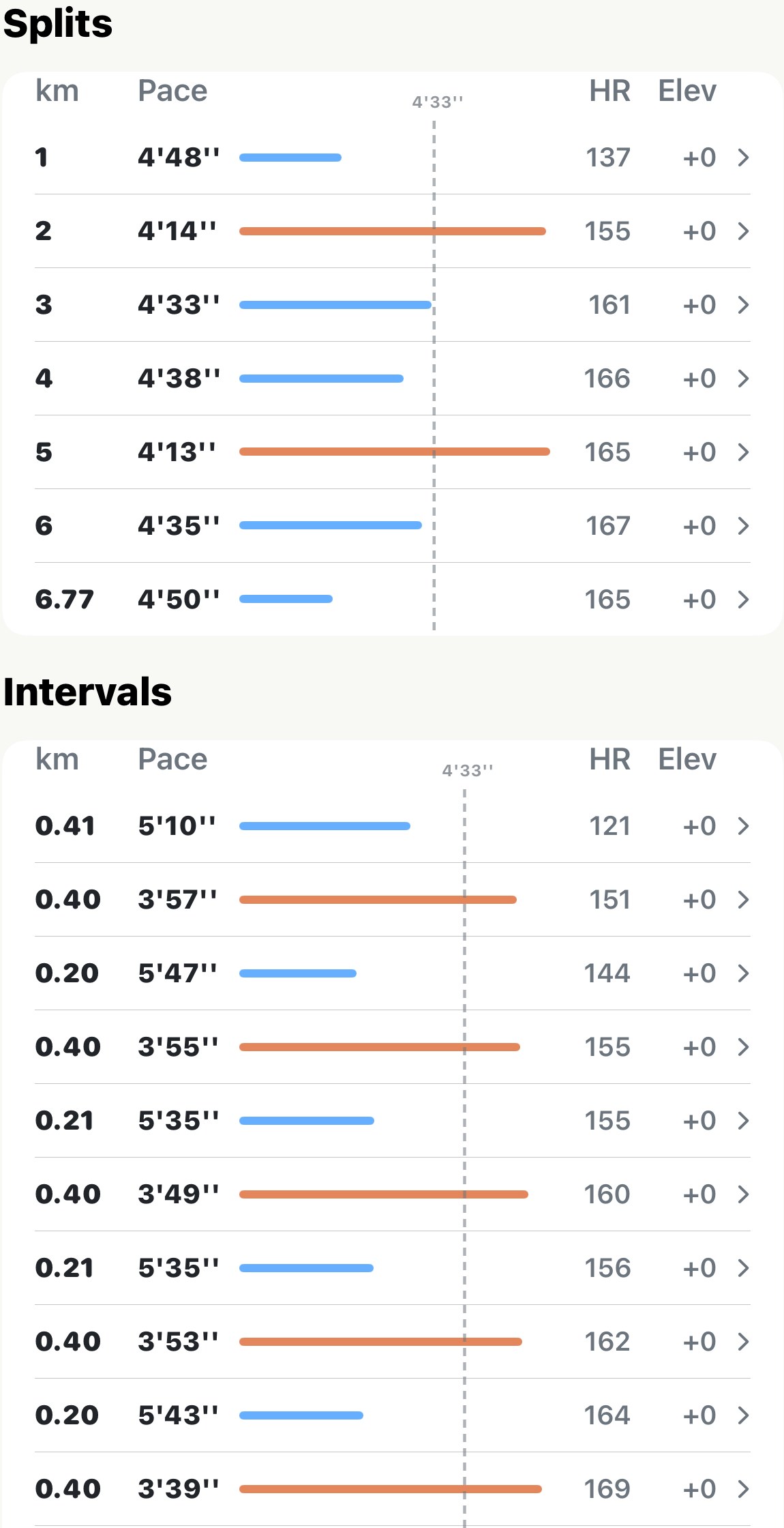
Two tables, two sources#
They look alike and appear in the same place, below the splits, but they come from different things you did on the watch.
Intervals follows a custom workout. Build a session in the Apple Watch Workout app with warm-up, work and recovery steps, run it, and every step becomes a row here in order: the warm-up, each effort, each recovery, the cool-down. The table appears whenever the workout had more than one step.
Segments follows marks you made yourself. On an Apple Watch, double-tapping the screen mid-run marks a segment. On a Garmin or any other watch that comes in as a FIT file, pressing the lap button does the same. Each mark ends a row, and the run’s end closes the last one.
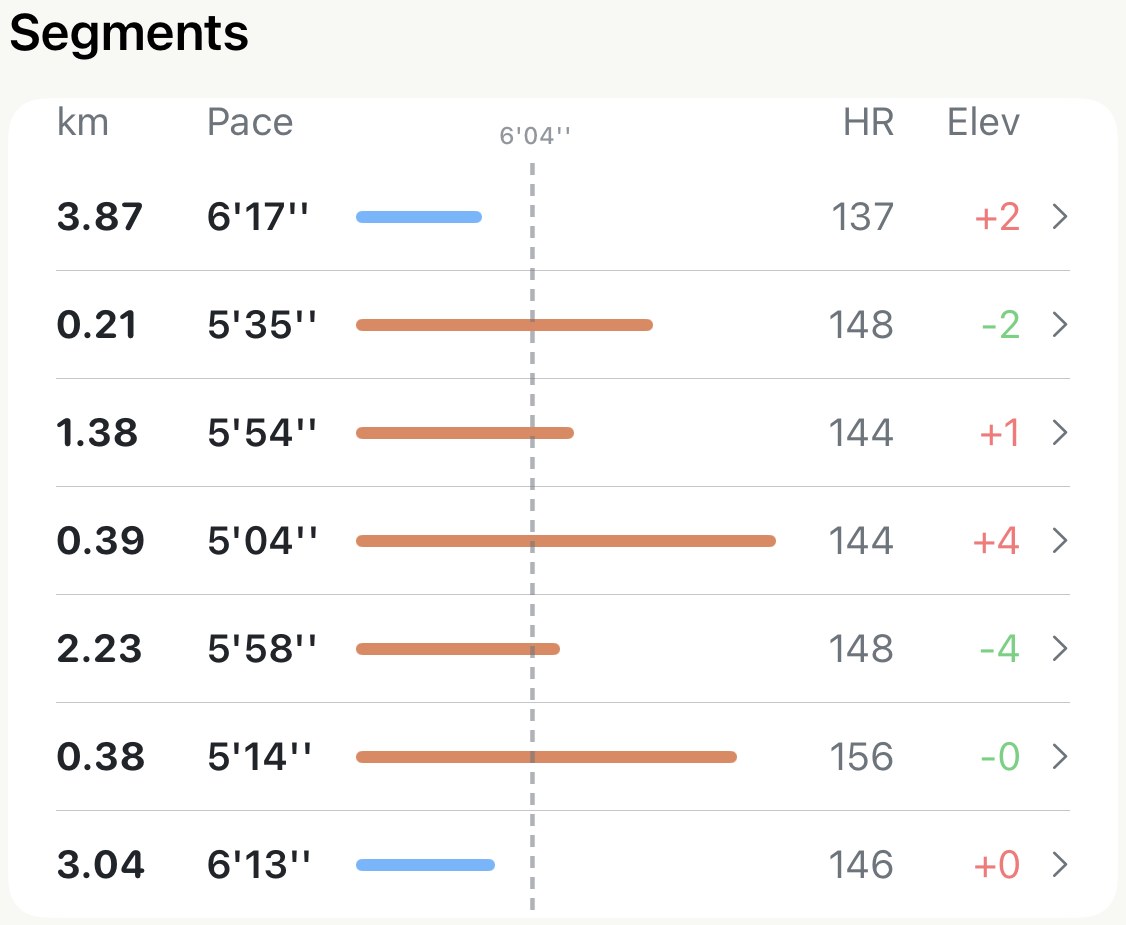
Reading a row#
The layout is the splits table’s, so nothing new to learn:
- Distance of the step or segment, in your unit.
- Pace, and a bar against the dashed line, which is the run’s average pace. Orange is faster than the average, blue slower. In an interval session the colours alternate on their own, effort, rest, effort, rest, and that alternation is the whole workout at a glance.
- HR, the average heart rate for that row alone. Watch it climb across a set of equal efforts: same pace, rising cost.
- Elev, the net change in height from the start of the row to its end, up or down. It’s the climb across the row, not the total ascent within it, so a loop that came back to where it started reads 0.
Tap any row and it opens on its own, with the single-split screen’s pace and heart rate traces for just that stretch.
They feed the share cards#
The two interval share cards draw their bars from these tables, so a run with either of them gets the cards on its own. If a run has both, the cards use the Segments, on the grounds that a mark you made by hand beats a step the watch made for you.
Worth knowing#
- An “Interval” run type doesn’t make an Intervals table. The run type is the app’s reading of your heart rate and pace; these tables need actual structure from the watch. A fartlek you ran by feel gets the label and neither table.
- Auto-laps every kilometre don’t become Segments. A FIT file whose laps were triggered by distance would only duplicate the splits, so those are left out. Laps from the button come in.
- One step is no table. A custom workout that was really just one long step shows nothing here, because there’s nothing to compare. Two marks make two Segments.
- The rows add up to the run, gaps included. The stretch before your first mark is a row, and so is the stretch after the last. If you forgot to mark the final rep, it’s inside that last row along with the cool-down.
Why it was built this way: A share card that actually shows the workout
Get the app
Every rep on its own row. Free.
Run a custom workout on your watch, or mark a segment mid-run, and Apex Run lays each effort out with its pace, heart rate and climb, next to the average line so the structure is obvious at a glance.
↓ Download Apex Run