
Save a FIT run to Apple HealthPro
Your watch was out of charge, so another app recorded the run. It doesn't have to stay outside your Health history — import its FIT file, then choose Save to Health.
When another app recorded your run, you can add it to Apple Health without recording it again. First import the FIT file into Apex Run, then save that one run to Health.
You’ll need Pro for FIT import, FIT export and Save to Health. Runs you’ve already imported remain readable without Pro.
Where it is#
Open the FIT-imported run, tap ⋯ in the top-right corner, and choose Save to Health, beside Export to FIT.
This action is for a FIT file containing one running session. Runs already synced from Health don’t have it; walks, hikes and multisport files can’t be saved this way.
Check the run, then save#
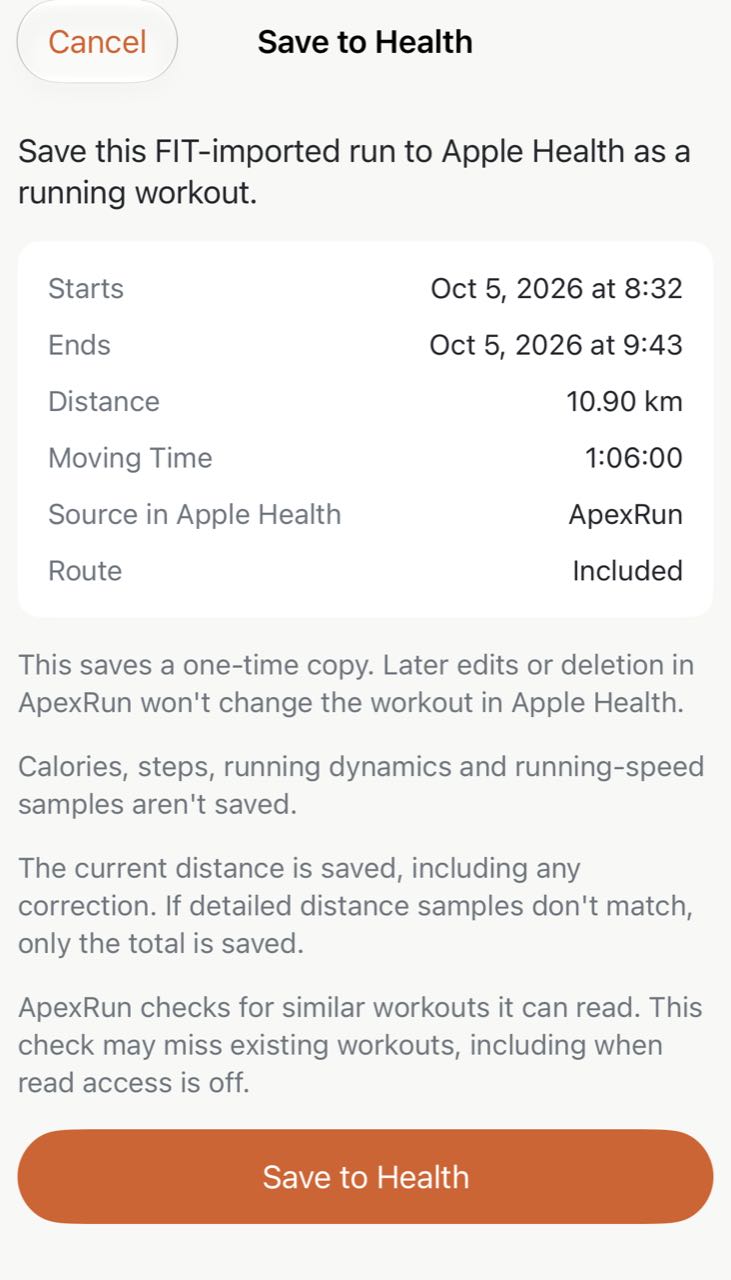
Before confirming, check:
- Starts and Ends — the original run’s date and time, not today’s save time. The span can be longer than Moving Time when you paused.
- Distance — the current distance in Apex Run, including any distance correction. Make that choice before saving.
- Source in Apple Health — the new workout will show ApexRun, even if another app recorded the FIT file.
- Route and Heart Rate — these appear as Included when available for this run. The example has a route but no heart rate.
Tap Save to Health to continue. If Apple asks for permission, allow all the requested write categories for this run: workouts and distance, plus route and heart rate when included. Reading your Health history and saving a workout are separate permissions.
Once Saved to Health appears, tap Done. You can find the workout on its original date in Health or Fitness. The run’s menu now says Saved to Health and won’t save it again.
What to expect in Fitness#
Your workout includes its timing and distance, with route and heart rate when available. You can also see kilometer or mile splits when the FIT recording has suitable distance detail. Not every file can supply splits; some runs save only the total distance.
Don’t expect every metric from Apex Run to appear there. Calories, steps, running dynamics and running-speed samples aren’t included in this save.
Worth knowing#
- Check for an existing workout first. If the recording app already sent this run to Health, cancel rather than save it again. A Possible Duplicate Workout warning gives you another chance to check. Save Anyway adds a workout; it doesn’t merge them. No warning isn’t proof that the run is missing.
- Make your changes before saving. This is a one-time copy, not ongoing sync. Later edits or deletion in Apex Run won’t change the Health workout. Saving leaves your original FIT run and its local details untouched.
- If the result is unconfirmed, check instead of starting over. Unlock your iPhone and choose Check Save Status. This checks the previous attempt without creating another workout, and remains available without Pro. Avoid importing another copy just to retry.
- Keep the original FIT file. If an older import asks you to import it again before saving, use that original file. Your existing run remains readable; saving to Health isn’t a full backup of its Apex Run details.
For the file-opening steps, see FIT import and export. For what stays local after a save, see your data and Apple Health.
Get the app
Keep that watch-free run in your history.
Bring a FIT recording into Apex Run, then choose whether to add that run to Apple Health. FIT import and Save to Health are Pro features.
↓ Download Apex Run