
See what kind of week you've actually run
Six easy runs and one long one is a base week. Four tempo efforts and nothing slow is a week heading somewhere you didn't plan. Both look identical in a list of distances, which is why every run in Apex Run carries a type.
Every run gets a type when it’s imported, read from your heart rate zones and how much your pace moved around during the session. You never have to set one — but you can always change one.
The six types#
Each type has a colour, and that colour is how you read the label in a list:
- Easy, orange — comfortable, conversational, and most of your week. The label you should see most often.
- Long, teal — the steady distance days: past about 90 minutes or 15 km at an easy to moderate effort. Race a half marathon hard and it comes back Tempo rather than Long, which is usually the label you’d want on it.
- Tempo, amber — sustained and comfortably hard. Most of the run spent above easy.
- Interval, coral — fast efforts with recovery between them. Recognised from an interval workout set on your watch, or from pace that swings hard with the heart rate to match.
- Recovery, cyan — short and genuinely slow, the day after something hard.
- Race, purple — yours to set. Apex Run never assigns this one on its own, because only you know whether that 10 km was a race or a good Tuesday.
Where the label shows#
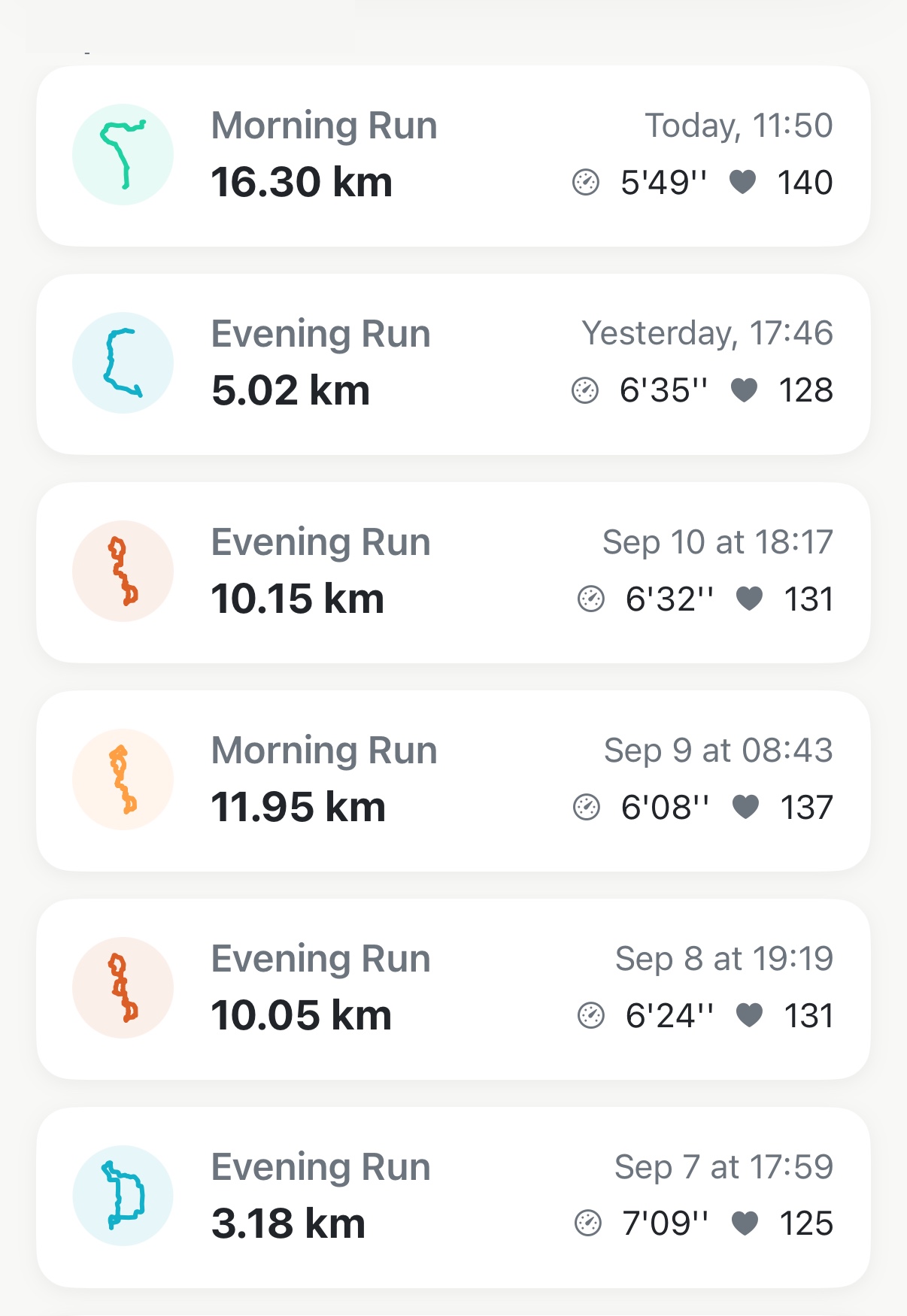
- In your run list and grid — each route thumbnail is drawn in its type’s colour. It’s what makes scrolling a month readable: mostly orange is a base block, coral appearing every few days is a sharpening one.
- On the run itself — the type appears in words, as a chip beside the weather and your shoes.
- The ⓘ at the top of your run list opens all six, with what each is for and how it should feel.
What the labels are for#
- Run Insights groups your history by type — every interval session, every long run, every race in one list.
- Your own categories can filter on type, so “long runs over 20 km in these shoes” is a saved view.
- Trophy Room collects the runs you’ve labelled Race, and a Race run gets a photo gallery of its own on the run page.
Changing a label#
Open the run, tap the edit button top right, and pick from Run Type. The ⓘ beside it opens the same six descriptions, so you can check what you’re choosing without leaving the sheet.
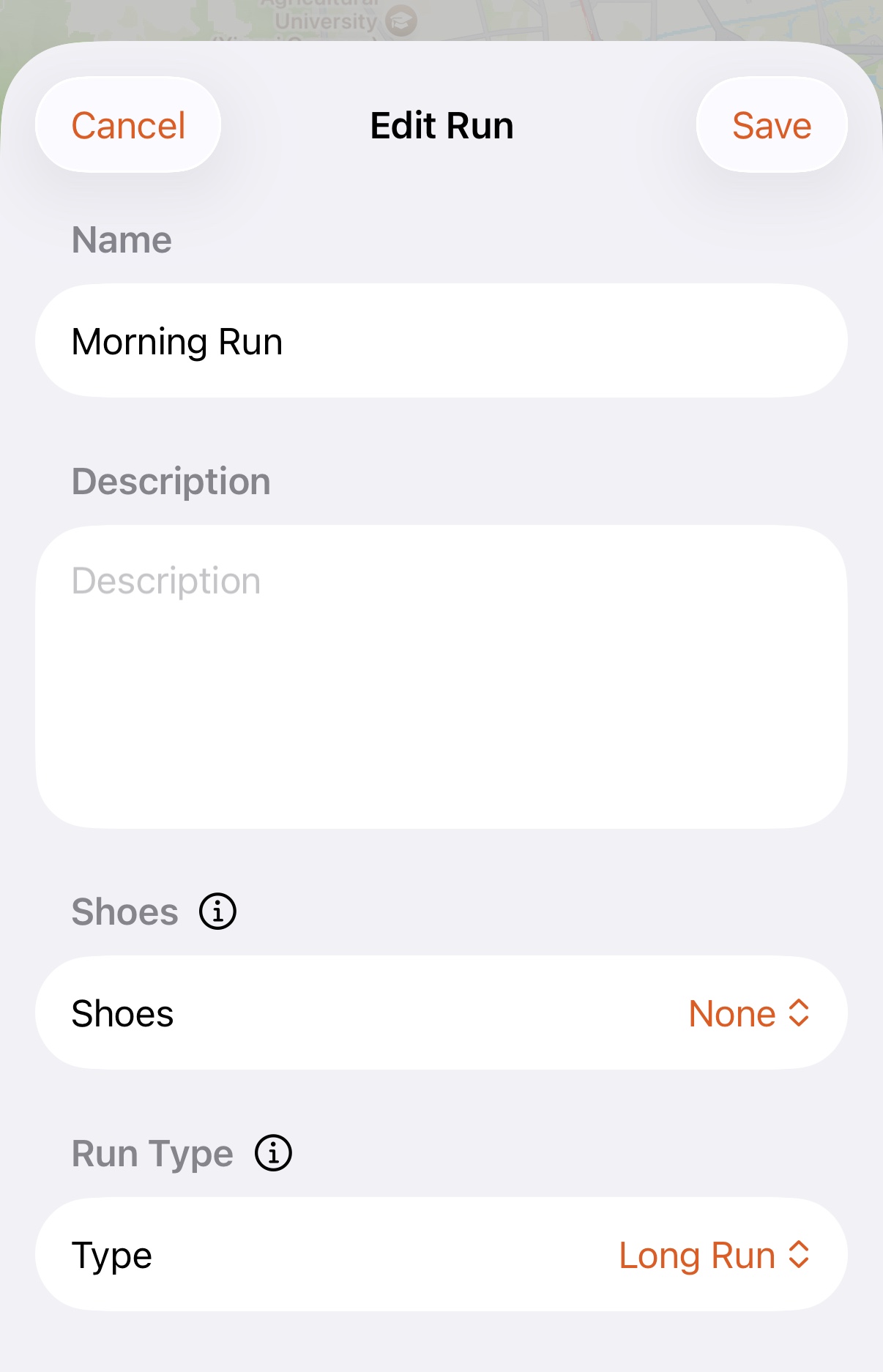
Picking Race adds a photo section to this sheet — a cover shot and a gallery for that race, which is how a race gets into Trophy Room.
Your choice stays put. Apex Run won’t relabel a run later, including after you change your heart rate zones — a label you picked is a decision, not a calculation. The one thing that does replace it is reimporting that run, which brings it in fresh.
How to actually use it#
- Label your races the week you run them. It’s what puts them in Trophy Room and unlocks the photo gallery on the run.
- Count your Easy labels. If they aren’t the clear majority of your month, your easy days are too fast — the single most common thing worth fixing.
- Read Recovery as a compliment. It means you managed to run genuinely slowly, which is harder than it sounds.
- Correct anything that reads wrong. A treadmill run with no pace variation, or a session where your watch lost heart rate, can land on the wrong label. Two taps and it’s right for good.
Why it was built this way: How Apex Run decides what kind of run that was
Get the app
See the shape of your last month.
Every run you've ever recorded arrives already labelled, so the pattern is there the first time you open the app. Run types are free.
↓ Download Apex Run