
Put back the part your watch didn't record
Your watch got the numbers. It didn't get that this was the first run after being ill, or that you were breaking in new shoes, or that it's the one you'd show someone. Four things you can add in a few taps, each of which earns its keep months later.
Every run arrives complete on the numbers and blank on the meaning. It’s called Morning Run, it has no notes, no shoes and no star. Four fields fix that, and each one pays you back somewhere else in the app.
Where they are#
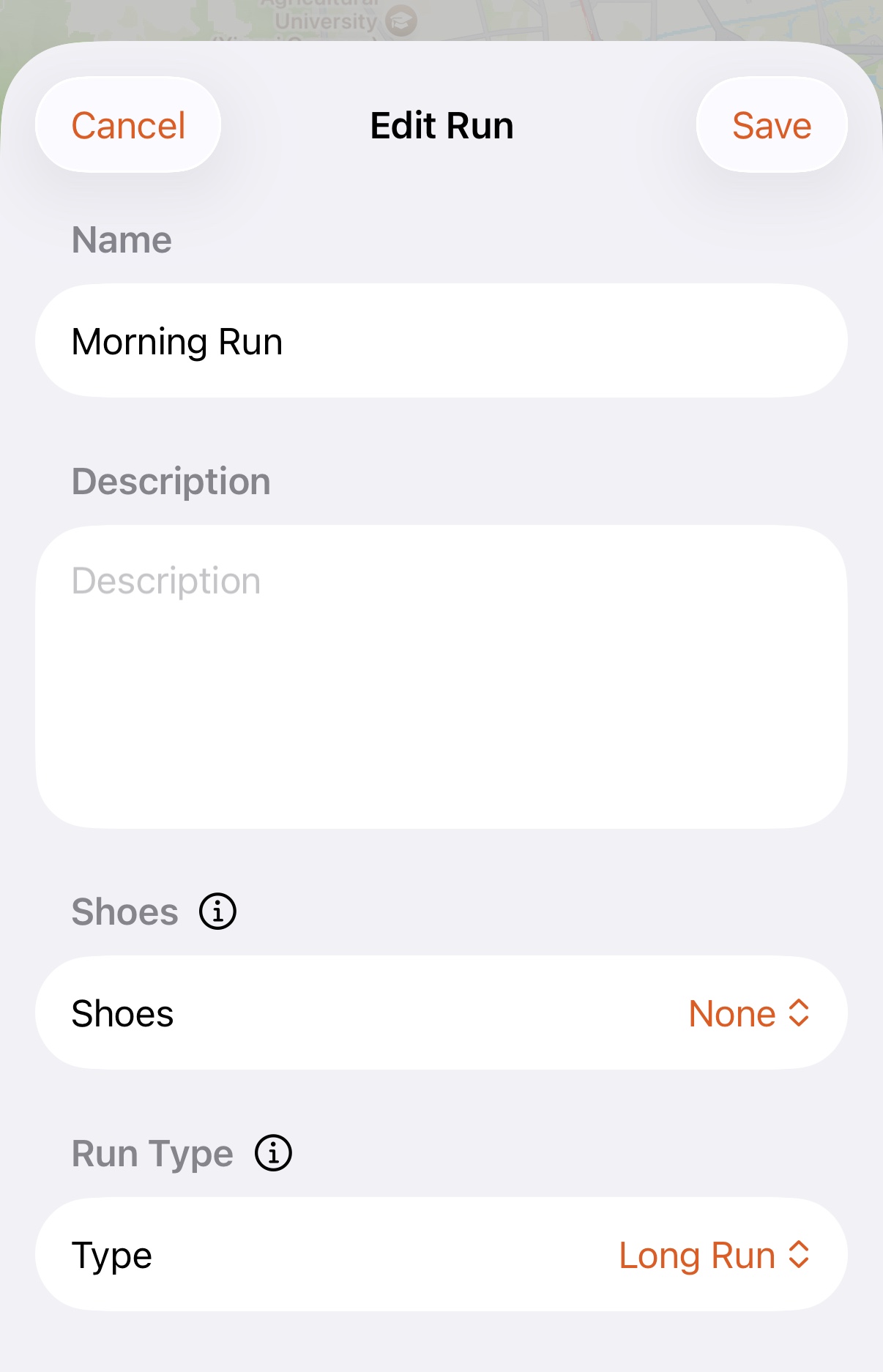
Open any run and tap the edit button top right. Name, notes, shoes and run type are all in that one sheet.
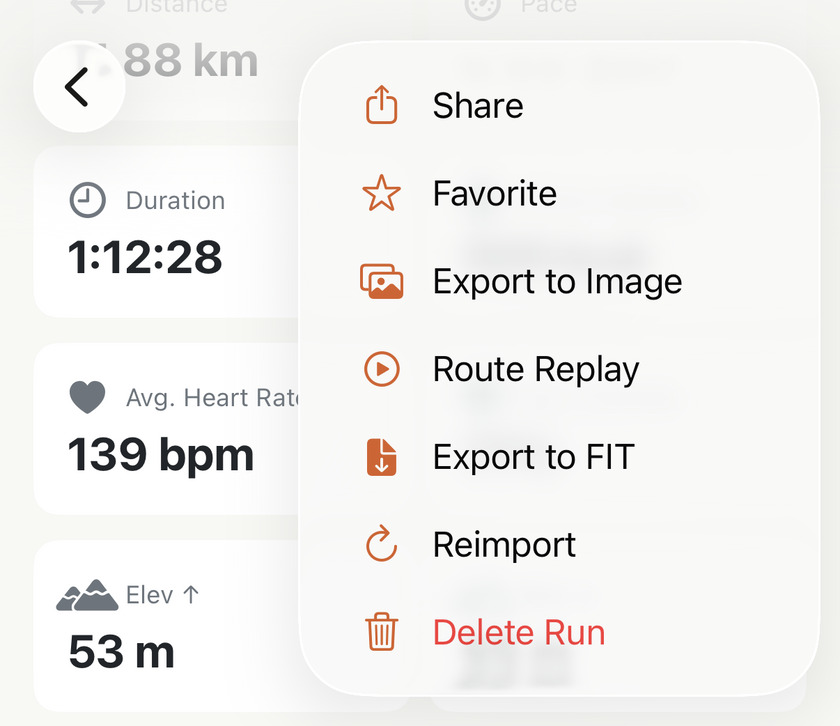
The odd one out is the favourite, which lives in the ⋯ menu next to it.
The name, which you didn’t choose#
Every run is named after the hour it started — Morning, Afternoon, Evening or Night Run. That’s Apex Run’s doing, not your watch’s, and it means your history is full of runs with four names between them.
Type over it with something you’d search for later, because the search box on your run list matches names and nothing else. Your notes aren’t searchable; the name is the handle. So “Parkrun PB” or “First 30k” is the difference between finding that run in two seconds and scrolling through a year of Morning Runs.
It shows at the top of the run, on the rows in list view, and on the share cards. Grid view doesn’t show names at all — it’s built from route shapes and numbers — so if you’ve gone to the trouble of naming your runs, list view is where you see it.
The note, for the thing numbers can’t hold#
Description takes as much as you like across a few lines, and it appears on the run screen under the date.
What’s worth writing is whatever you’d want to know if the numbers ever look strange later: ill all week, new shoes, felt stiff, stopped twice at lights, 35°C. A 5:40 pace with no explanation reads like lost fitness. The same run with “first one back after flu” on it reads like exactly what it was.
The favourite, which is filing rather than decoration#
Open ⋯ and tap Favorite — a star. It saves the moment you tap it, with no Save to press, and the menu item turns into Unfavorite for when you change your mind.
Then two things happen, and only two:
- A star chip appears on the run itself, beside the weather and your shoes.
- The run joins the Favorite Runs card in Categories, which is the whole point of it.
The shoes, which count themselves#
Most runs arrive with their shoes already on. Once you’ve added a pair, new runs are tagged with your default pair, so there’s usually nothing to pick. See Shoes Tracker for choosing which pair that is.
Wore something else? Tap the shoes on the run, next to the weather and the run type, and pick the right pair. The distance moves across with it, off the old pair and onto the new one. A run with no shoes shows Add shoes in the same place.
Shoes in the edit sheet does the same job, and it lists every pair you’ve added, retired ones included. Use it when the pair you want has been retired.
A pair’s mileage counts the runs that wore it. The distance counts from whenever you tag a run, however old the run is. It comes off again just as readily: untag a run, move it to another pair, or delete it, and the total drops to match.
Your older runs aren’t tagged by the default. Adding a pair offers to claim every untagged run since its purchase date in one tap, which is covered in Shoes Tracker.
The number matters because the answer to should I replace these? is usually quoted at 500–800 km for road shoes, and nobody can guess where a pair sits from memory. Shoes Tracker is where the totals live.
Worth knowing#
- Cancel means cancel. Nothing in the sheet saves as you type — including the photos on a race. Leave by Cancel and you leave with nothing changed.
- Reimporting a run keeps all four. Name, notes, shoes and star survive it; the only thing that comes back rewritten is the run type.
- Everything here is yours alone. None of it goes to Apple Health, so it stays in Apex Run on this phone — and a second device shows the same runs unnamed.
- Shoes show as a chip on the run, next to the weather and the run type, in the pair’s colour. It’s also the quickest way to change them: tap it.
Get the app
Name one run tonight.
All four are free and none of them take a minute. Start with the last run that meant something — a name and one line of why is enough to find it again in two years.
↓ Download Apex Run