
Give every kind of run its own shelf
Every hill run you've ever done, in one list, in two seconds. Not because you remembered which ones they were, but because you told Apex Run once what a hill run is.
Your history isn’t one long list, it’s several. The races. The long ones. The ones up the hill you keep going back to. Categories puts each of those behind its own card with a count on it — and lets you invent the ones nobody thought of for you.
Free, unlimited, and the six that matter most are already there.
Where it is#
Open the Insights tab and tap the Categories chip in the row along the top, beside Stats, Trends and Records.
What’s already on the grid#
All Runs sits across the top with your lifetime totals — how many runs, how far, how long. Under it, six cards, each with a live count:
Favorite Runs, Interval Runs, Race Runs, Tempo Runs, Long Runs and Recovery Runs.
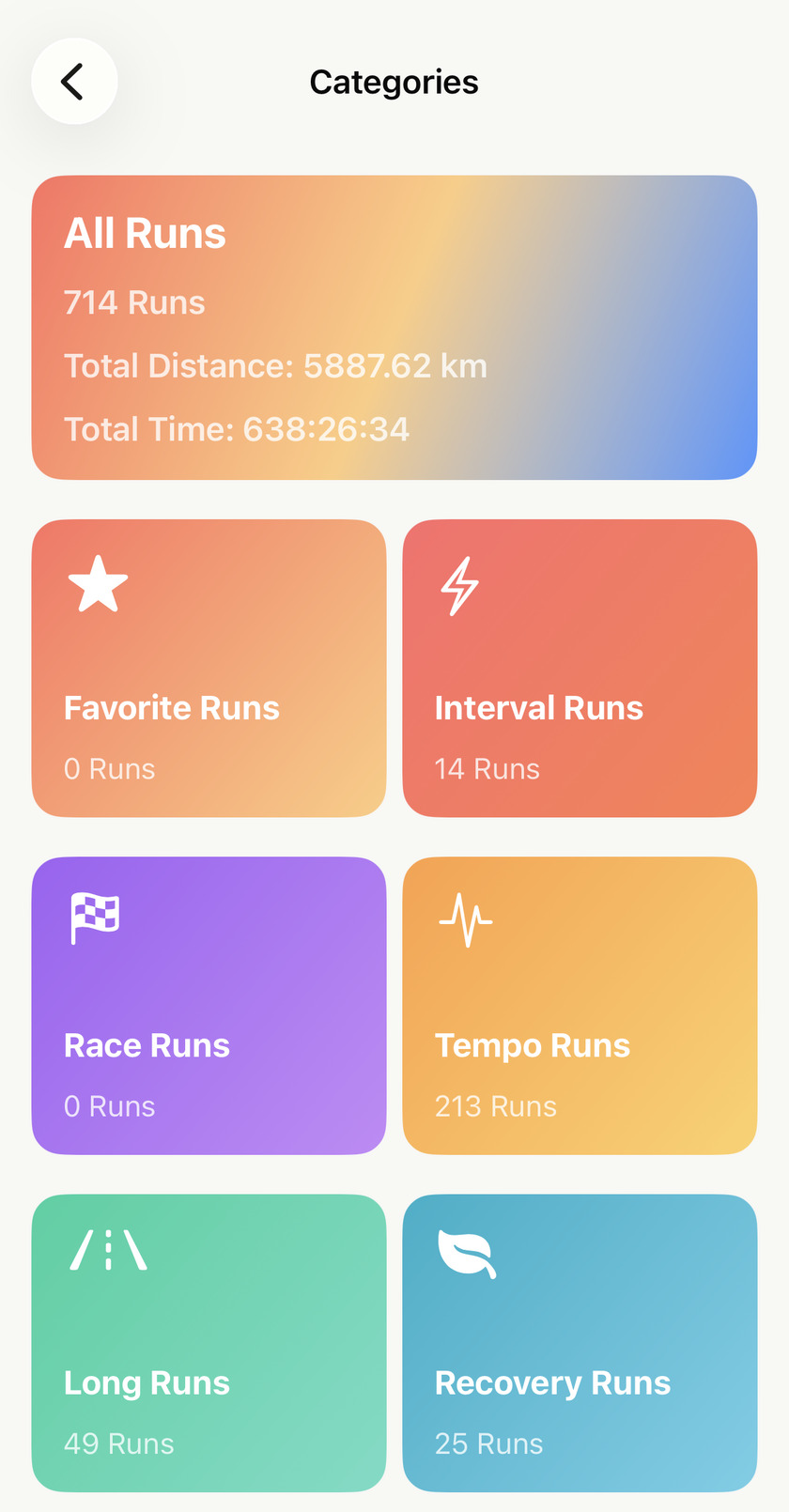
Tap any of them and you get a normal run list, filtered. Everything you’re used to comes with it — it opens in list or grid depending on which you last used, you can search it by name, and tapping a run opens the run.
Building your own#
Tap New Category — the last card on the grid — and you get a short form in two parts.
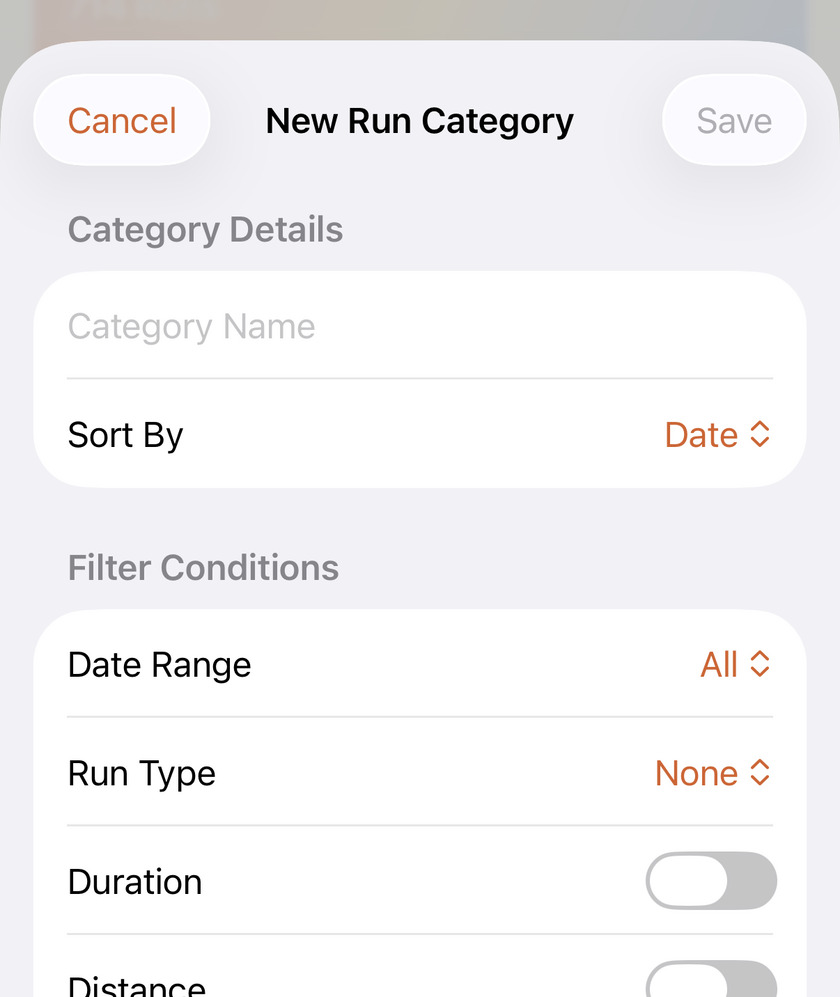
Category Details
- Category Name. Whatever you’ll recognise. Save stays greyed out until you type one, which is the usual reason people think the form is broken.
- Sort By — see the warning below, because this one isn’t a filter.
Filter Conditions, and you can use as many as you like:
- Date Range — All, 30 / 90 / 180 / 365 days, This Week, This Month, This Year, or Customize for two exact dates.
- Run Type — None, or one of Easy Run, Tempo Run, Interval Run, Long Run, Race, Recovery Run.
- Duration — toggle it on, then a Min and Max in minutes. Either alone works: Min only means “longer than”, Max only means “shorter than”.
- Distance — same shape, in your own unit.
- Elevation — same shape, always in metres, even if your distances are in miles.
- Environment — None, Indoor or Outdoor.
Every condition you set has to match. They narrow, they don’t add up: Run Type Long Run plus Distance Min 20 gives you long runs over 20 km, not everything that’s either one.
Sort By is a sort, not a filter — and it quietly changes the screen. It sits up in Category Details, so it reads like part of the filtering, but all it does is decide the order runs come out in: Date, Distance, Duration, Pace, Active Calories or Elevation Ascend.
The part worth knowing before you choose: leave it on Date and your list keeps its month headings and the calendar button. Choose anything else and you get one flat ranked list — no months, and the calendar button disappears. That’s a good trade for a leaderboard and a bad one for browsing, so it’s worth picking deliberately rather than by accident.
Five that earn their place#
- Easy Runs — Run Type: Easy Run. The missing card, and the one that tells you whether your easy days are actually the majority.
- Hill Runs — Elevation, Min 200. Name it after the climb you know rather than the number.
- This year’s long ones — Date Range: This Year, Distance Min 20. The card’s count becomes a season tally you didn’t have to keep.
- Treadmill — Environment: Indoor. Useful on its own, and it’s the group that ruins averages when it’s mixed in.
- Races, fastest first — Run Type: Race, Sort By: Pace. This is where the flat ranked list is exactly what you want: your races in order of pace, best at the top.
Changing your mind#
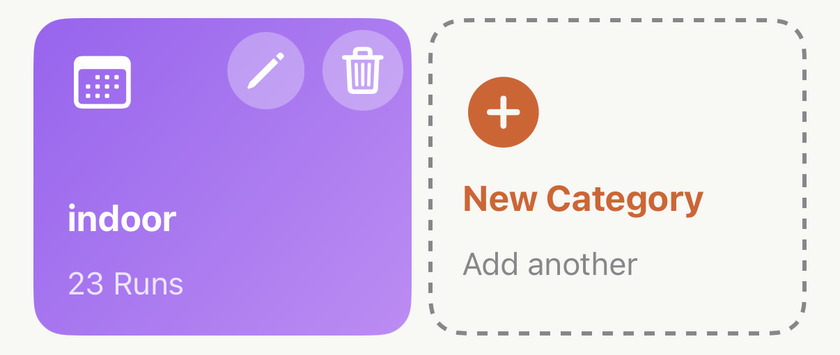
Your own cards carry two buttons the built-in six don’t have.
The pencil reopens the form with everything as you left it, so a category is never a one-shot decision. Build it roughly, see what lands in it, then tighten the numbers — that’s the normal way to get a good one.
The bin deletes it immediately, with no confirmation. It only removes the category, though: your runs are untouched, and rebuilding it takes the same fifteen seconds it took the first time. Nothing here can cost you data.
Worth knowing#
- Counts are live. Every card recounts when you open the screen, so a category built once keeps answering — the Hill Runs card tells you how many you’ve done this year without you asking.
- A category is a question, not a folder. Runs aren’t moved into it and a run can sit in several at once. Relabel a run’s type and it changes which cards it shows up under, by itself.
Get the app
One category, then it's permanent.
Categories are free and unlimited. Build the one you'd reach for most — hill runs, races, anything over 15 km — and it stays on the grid with a live count from then on.
↓ Download Apex Run