
Start with years of runs, not an empty app
Every run you've ever recorded is already on your phone, in Apple Health. The first thing Apex Run does is read all of it, so your opening screen has years of history on it instead of an invitation to go for a run.
A new running app usually starts you at zero: an empty list, a prompt to go for a run, and a year of waiting before any chart means anything. That is a strange way to treat someone who has been running for a decade — because all of it is already on the phone. Apple Health has been collecting it every time the watch finished a workout.
Apex Run’s first job is to read that. Not a sample, not the last month. All of it.
What it asks for, and why#
One tap past the welcome screen:
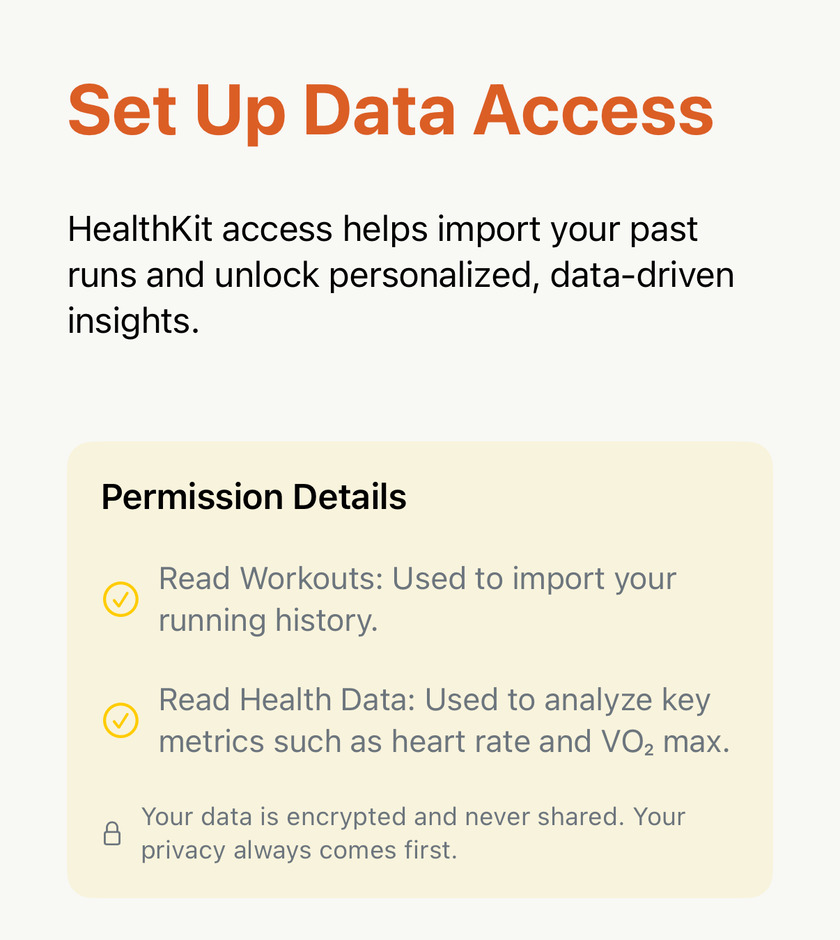
- Read Workouts — the runs themselves. This is what fills the list.
- Read Health Data — heart rate, VO₂ max, resting heart rate, sleep. This is what turns a list of distances into zones, training load and a recovery score.
Both are read-only: the first import and ongoing sync don’t write to Health. There’s no account and nothing to sign in to; your runs are analysed on the device. If you later want to put a FIT running workout into Health, Save to Health is a separate, manual Pro action for one run at a time. Deleting the app removes its local data, not a copy already saved to Health. Where your data stays, and what you can share has the details.
Then it starts, and tells you one number#
The import begins straight away — before you’ve dismissed anything — and this is what you get while it runs:
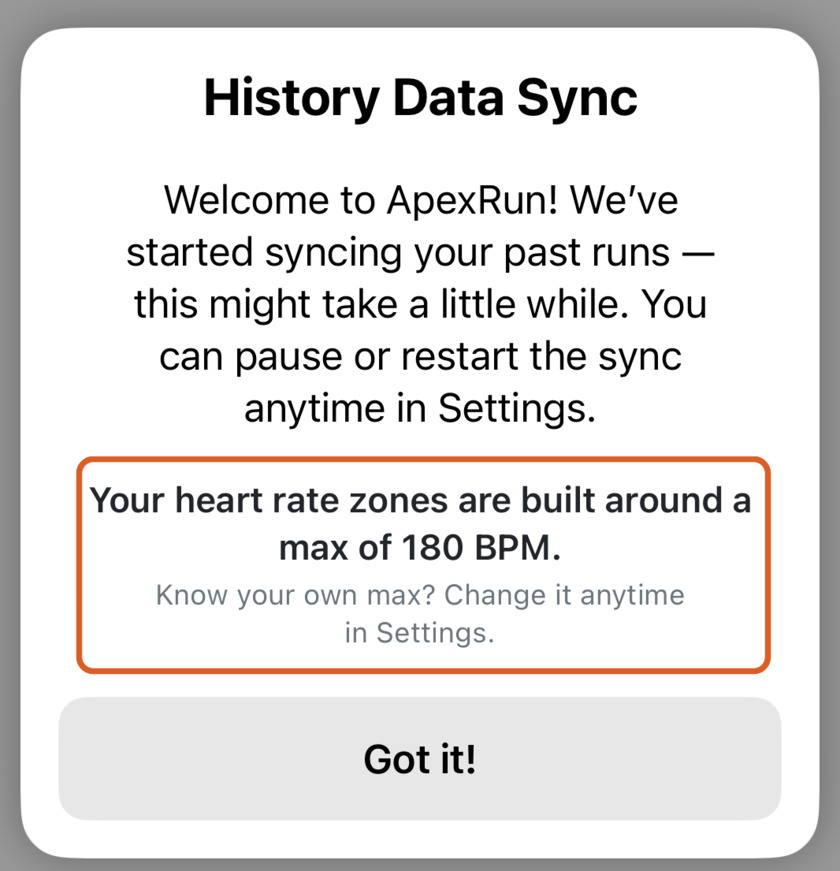
That max of 180 BPM is an estimate from your date of birth — 220 − age — and it’s the figure your heart rate zones are cut from. It matters more than it looks. Every run imported over the next few minutes is classified as easy, tempo or interval against those zones, and that classification is deliberately historical: it records how hard the run was by the zones in force at the time, and it is not redone later when you change the number.
So if you already know your real maximum — from a hard 5K, or a hill session where the watch showed you something it has never shown since — this is the cheapest moment in the app’s life to say so. Set heart rate zones that match your effort is the two-minute version.
How long it takes, and what to do meanwhile#
Your most recent run lands almost immediately, so the app isn’t blank while it works. The rest fills in behind it, and you can browse the entire time — the import doesn’t hold the screen.
For as long as it’s working, Profile→Settings→Data swaps Sync All Data for Stop Sync, with a progress line under it.
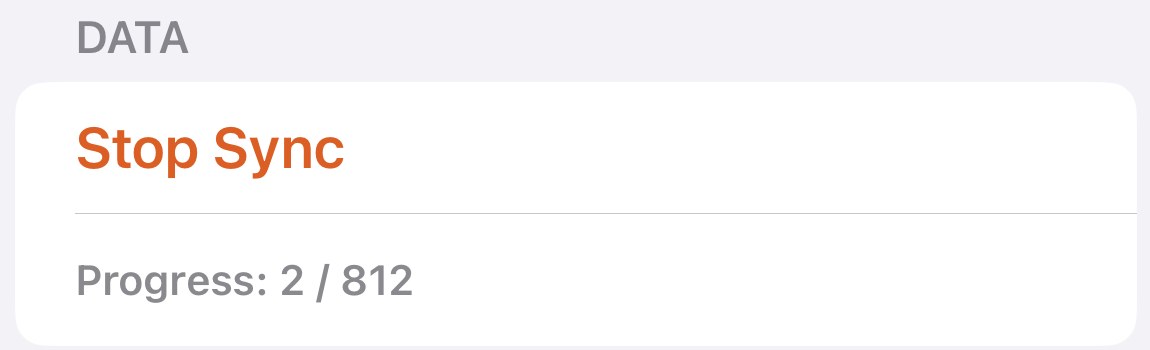
That line counts runs missing from the app — not runs you’ve ever done. On a first import the two are the same thing, so it starts at your whole running life. Later they come apart: tap Sync All Data once everything is already in and it reads 0 / 0, because there’s nothing to fetch. That’s the answer you want, not a failure.
A few hundred runs is minutes rather than seconds, because each one carries a full heart-rate series and those are the expensive part. Two things follow:
- Keep the app open and the phone unlocked while it works. That isn’t a preference — iOS encrypts health data the moment the phone locks, so at that point the import genuinely cannot read anything. It’s also why no app can quietly do this overnight for you.
- It doesn’t have to finish in one sitting, which is what Stop Sync is for.
Stopping it costs you nothing#
Stop Sync stops it immediately. What it doesn’t do is throw the work away: Apex Run remembers that the import is unfinished and picks it up again a couple of seconds after you next open the app, with no button to press. Runs already imported stay imported.
So there’s no wrong answer here. Stop it because you need to leave the house, come back tomorrow, and it carries on from where it stopped.
Worth knowing#
- A run in the list is a finished run. Nothing shows up half-imported — if you can see it, its splits, zones and best efforts are all there waiting to be opened.
- New runs arrive on their own afterwards. Once your history is in, runs from your watch appear without being asked for. Sync All Data is the fallback for the rare one that doesn’t, not a routine.
- Hiking and walking workouts aren’t runs, so the import skips them. If you recorded a run under the wrong type — the classic being a hill walk you broke into a run halfway up — then Profile→Runner's Toolkit→Convert Workout to Run will bring one in anyway, from anything in the last 180 days.
Why it was built this way: Zero cold start
Get the app
Your history is already on your phone. Go and read it.
Apex Run imports every run in Apple Health on the day you install it — no account, no upload, nothing typed in. The import is free, and so is everything on this page.
↓ Download Apex Run