
After a 15-kilometre long run, I used to scroll down to the bottom of my run details and stare at two numbers: Ground Time 241 ms, Vertical Oscillation 8.6 cm.
It always left me unsatisfied.
On a good long run, I can feel my stride changing. During the first few kilometres, my legs feel fresh and springy. My feet touch the ground lightly, cadence naturally sits right around 180 spm, and very little effort is wasted bouncing upward.
By kilometre 12, fatigue starts to set in. My hips drop slightly, my feet slap the asphalt and stay down longer, and my cadence begins to drag. I have to work noticeably harder just to hold the same pace.
Yet when I looked at the app, all of that was smoothed into a single average. A single number told me my ground contact time was “fine”, completely hiding the fact that my form fell apart in the final three kilometres.
In earlier versions of Apex Run, I took the simple approach: I just pulled the workout summary that Apple Health provided. It was easy, but it missed the point. Form isn’t a static number. It’s a continuous curve that tells the story of fatigue, pacing, and effort.
I wanted to see that curve.
Giving form its own room#
Apple Watch actually records full time-series data for cadence, stride length, ground contact time, and vertical bounce throughout an outdoor run. The data was sitting in HealthKit all along; I just hadn’t pulled it.
Once I started fetching all the raw samples, I had thousands of data points for every run. But cramming four new charts into the main run view—underneath pace, heart rate zones, elevation, and splits—made the screen feel cluttered and endless.
Running form isn’t a footnote. It’s just as important as cardiovascular effort.
So I decided to give it a dedicated space right at the top:
[ 📈 Performance | 🏃 Running Form ]
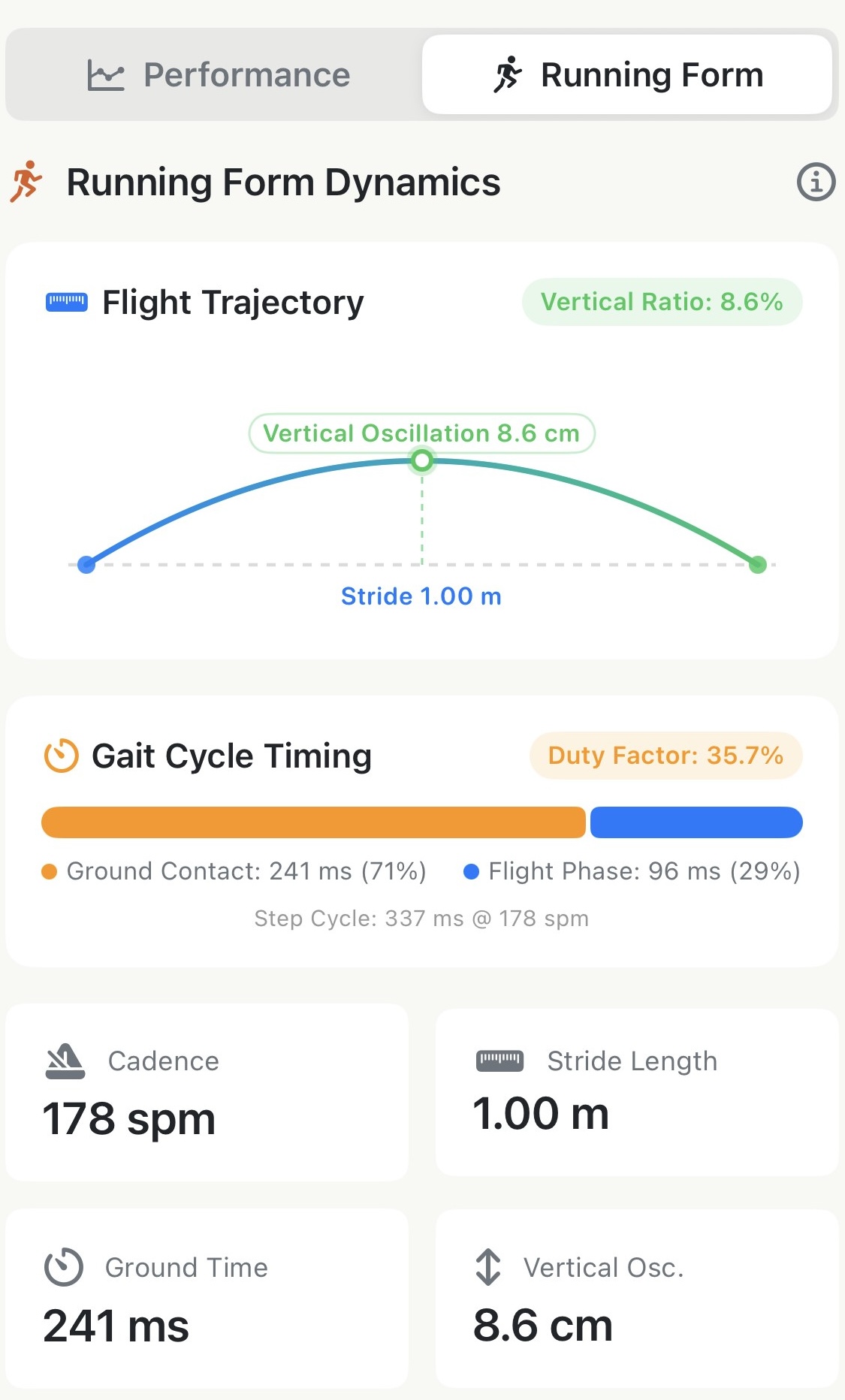
The Performance tab keeps my pace, heart rate, elevation, and splits clean. When I want to look at my biomechanics, I tap Running Form.
Turning numbers into shapes#
Even with the charts in place, staring at numbers like “8.6 cm bounce” or “1.00 m stride” felt too abstract. I wanted a way to see what my stride looked like.
That’s why I built the two visual cards at the top:
- Flight Trajectory: A parabolic arc that renders my stride. The baseline shows my stride length, while the peak shows how high my body bounced. In the corner, the Vertical Ratio badge tells me immediately what percentage of my forward energy was lost going up.
- Gait Cycle Timing: A two-tone bar showing where the time in each step went—orange for ground contact (braking and pushing off), and blue for the flight phase floating in the air.
Instead of trying to interpret four disparate digits in my head, I can glance at the card and immediately see whether my stride was springy or heavy.
What happened at minute 22?#
Below the hero card, I placed four full charts: Cadence, Stride Length, Ground Time, and Vertical Oscillation.
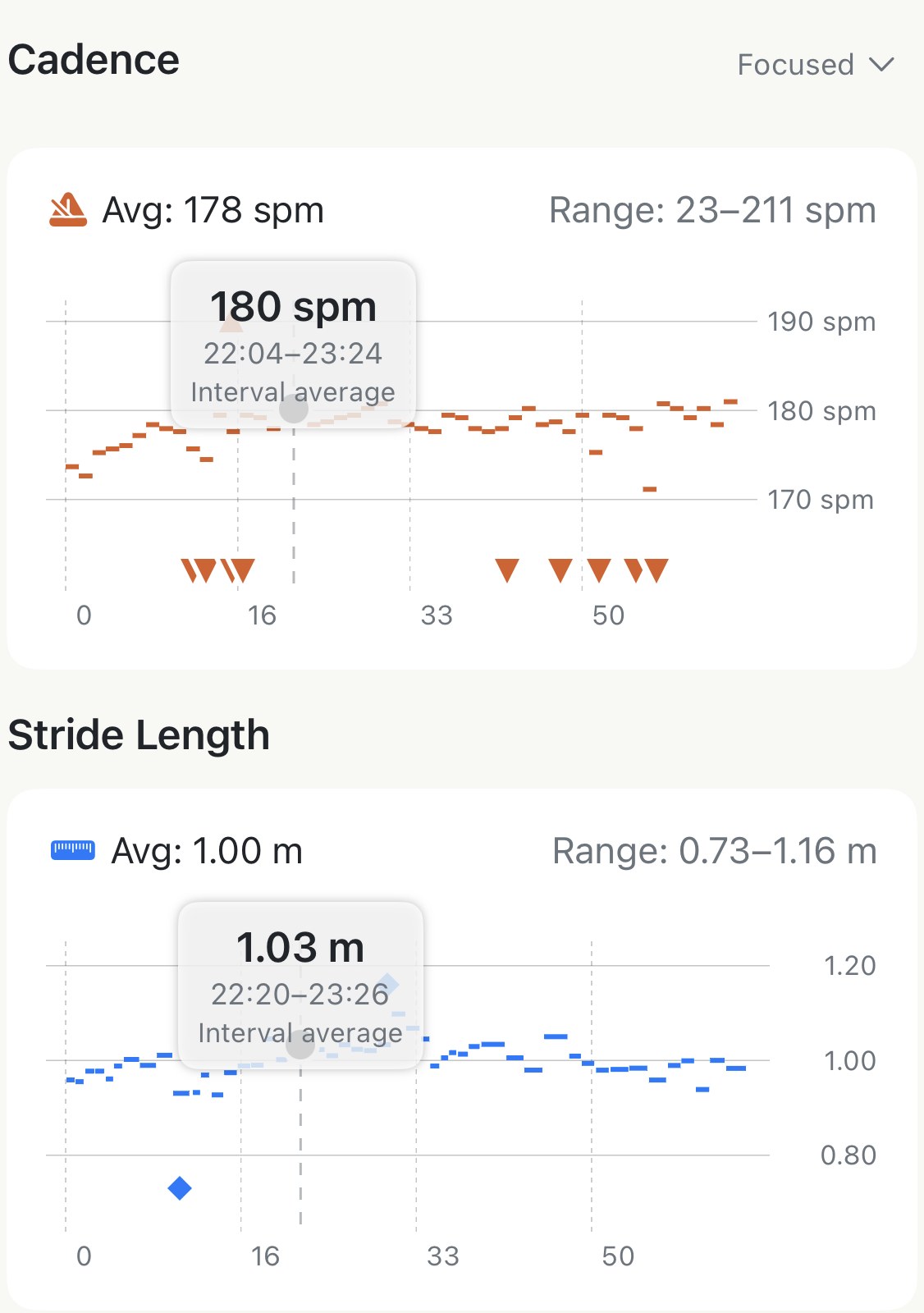
The feature really came together when I linked them.
When I drag my finger across any chart, a synchronized cursor sweeps across all four simultaneously. If I notice my cadence dipping at minute 22, I can look straight down and see whether my ground contact time spiked or my stride lengthened to compensate. The trajectory arc at the top updates in real time with the crosshair.
I also brought this into the split detail view. Now, when I tap on a kilometre that felt especially tough—like an uphill split—I can toggle to Running Form and see the exact trajectory and dynamics averages for that single kilometre.
Now, after a hard long run, I don’t have to wonder whether my legs held together in the back half. I just open the Running Form tab, and the answer is right there.